
Software guides become easier to update when the script, narration, recording, and captions remain separate source files. This tutorial proposes that workflow for a small product task.
We use an actual Anchor Connector test-company screen and an original script. This is a production recipe, not a claim that we generated the example with ElevenLabs. No generated voice sample or measured time saving is presented.
Original AI-generated concept illustration for Anchor Sprint. It does not show the vendor interface.
What this workflow produces
- An approved script with one task per scene.
- A screen recording from a test workspace.
- Narration for each approved scene.
- Captions checked against the audio and the visible actions.
- A release record with the script, model, voice, language, and product version.
The first pilot should cover one task and one language. Expand only after a reviewer accepts the finished tutorial. For plan selection, see our ElevenLabs Malaysia pricing and setup guide.
1. Verify rights before generating commercial audio
The free plan excludes commercial use. A paid subscription does not replace permission to use the script, recordings, or voice. Feature-specific terms can also apply. Check ElevenLabs publishing guidance before generation.
Use a permitted library voice for the first pilot. If you need a cloned voice, establish the speaker's consent and permitted uses first. Check the selected model's language support, especially for Malay names and mixed-language terms.
2. Write a script against real product evidence
Start with a task that has a clear success condition. For our example, the viewer checks the company connection before continuing.
A real product screen, with a proposed narration
This Anchor Connector screenshot shows a test company. The script below is prepared for this tutorial. Generated audio is not included.
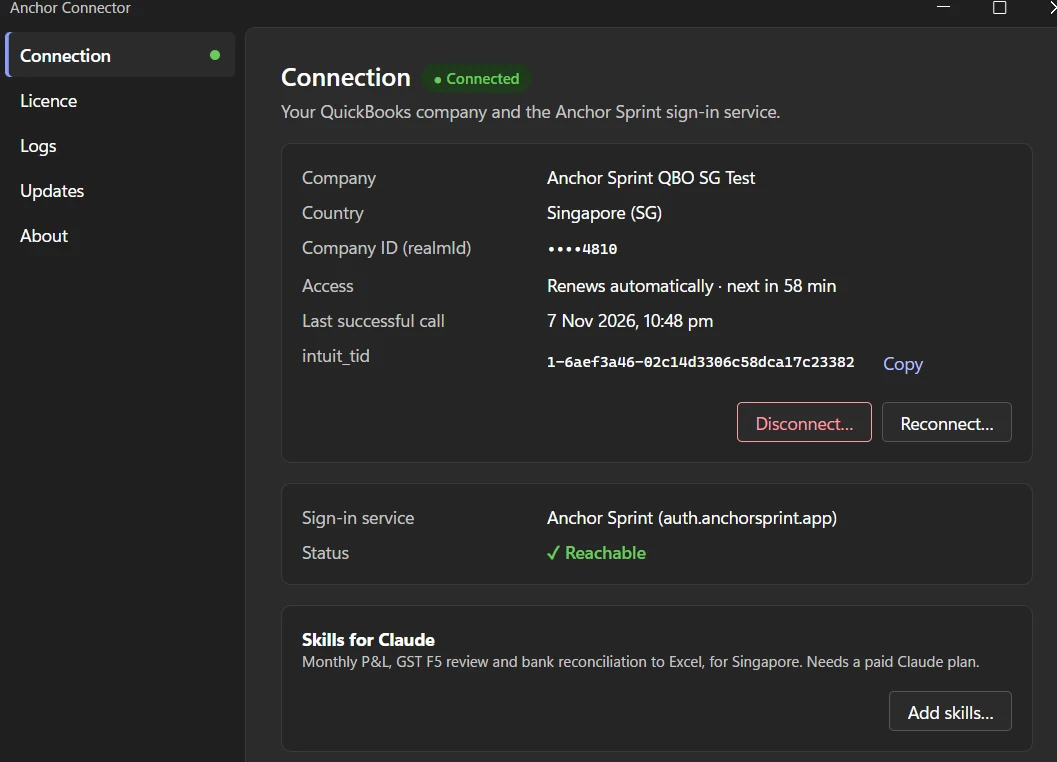
Open Connection. Confirm that the connection status is Connected. Check the company name before you continue. Confirm that the service status is Reachable. If the company is incorrect, stop and check your setup.
Match the words “Connected” and “Reachable” to their visible status labels. Pause between checks so viewers can inspect the screen.
Download the script, checklist, and API starter kit (ZIP)No email required. The starter code is provided for review; it has not generated this example.
| Scene | Screen evidence | Proposed narration | Review check |
|---|---|---|---|
| Open | Connection section | Open Connection. | The correct section is visible. |
| Status | Connected label | Confirm that the connection status is Connected. | The label and narration agree. |
| Company | Test-company name | Check the company name before you continue. | No customer records appear. |
| Service | Reachable label | Confirm that the service status is Reachable. | The narrator pauses for inspection. |
| Exception | Same screen | If the company is incorrect, stop and check your setup. | The instruction avoids an invented repair step. |
Keep interface labels exact. Remove unsupported claims, passwords, account identifiers, and customer records. A product owner must approve the instructions before the speech model receives them.
The source product is Anchor Connector for QuickBooks. Our existing product demo provides broader context; it is not presented as an ElevenLabs-generated video.
3. Use Studio for the first approved tutorial
The simplest pilot uses the documented Studio video voiceover workflow.
- Record the actual interface in a test workspace.
- Upload the recording into a video project.
- Select an eligible voice and a model that supports the script language.
- Generate a short pronunciation test.
- Arrange the recording and approved speech on the timeline.
- Add captions and check their timing.
- Watch the complete export before publication.
Keep the cursor and interface actions visible. A spoken instruction should occur before the viewer needs to perform its action. Add pauses when a screen needs inspection. Do not stretch the audio to hide incorrect pacing.
4. Use the API when repeated updates justify automation
The API route makes sense when many approved scenes need repeatable generation. Your pipeline still needs storage, scheduling, review, and rendering. Speech generation alone does not create a verified product video.
The downloadable starter calls the documented text-to-speech endpoint with timestamps. It writes an MP3, draft SRT captions, and a manifest. It uses the full JSON endpoint, not the streaming endpoint.
approved script -> speech job -> audio and draft captions
               -> screen alignment -> human review -> release
Keep the API key in your local environment or secret manager. Never place it in a browser bundle, repository, screenshot, or download. Select a voice ID that your account permits.
python generate_voiceover.py --voice-id YOUR_VOICE_ID --model-id YOUR_MODEL_ID --script narration.txt --output output
The script reads ELEVENLABS_API_KEY from the environment. It requires an explicit voice and model. One invocation makes one generation request with a timeout. It does not silently retry a potentially billable request.
The returned character timing becomes draft caption groups. Inspect line breaks, punctuation, timing, and speech accuracy. When you add pauses or shift audio on a video timeline, adjust the captions by the same amount.
The starter has no queue, account quota management, enterprise retention configuration, or automatic video renderer. Review it before connecting production systems. Its offline caption conversion test does not establish live API compatibility or voice quality.
5. Add production controls around generation
| Stage | Engineering control | Business owner |
|---|---|---|
| Source | Versioned script and product build | Product owner approves the task. |
| Intake | Approved language, voice, and data classification | Content owner verifies permissions. |
| Generation | Secret storage, timeout, job ID, bounded attempts | Budget owner sets usage limits. |
| Assembly | Scene identifiers, caption offsets, output checks | Editor verifies pacing. |
| Review | Script-to-screen checks and native-language listening | Named reviewer accepts the tutorial. |
| Release | Approved assets, transcript, changelog, rollback copy | Publisher owns the release. |
| Maintenance | Rebuild only affected scenes after product changes | Product owner checks continued accuracy. |
For a production queue, prevent duplicate jobs with an input fingerprint covering script, voice, model, language, and settings. Do not reuse an old asset after a material script change. Distinguish a transport failure from a rejected request before deciding whether another billable attempt is appropriate.
Store inputs and approved outputs according to your data policy. Confirm contractual data handling and retention requirements directly with the vendor. A local automation wrapper does not establish enterprise compliance.
6. Measure approved output, not generated minutes
Estimate the total cost of a tutorial, including rejected takes, editing, language review, storage, and maintenance. Compare this with your existing recording process using the same scope and acceptance criteria.
Cost per approved tutorial = total production cost / approved tutorials
First-pass acceptance = tutorials accepted without rework / reviewed tutorials
Update lead time = approval time minus product-change intake time
Record the source version and review decision alongside each result. Do not assume a faster generation step reduces total production cost.
Troubleshooting
- Wrong pronunciation: test the term separately, then check the selected model's pronunciation options.
- Captions drift: compare the raw audio timing with offsets applied during video editing.
- Wrong interface instructions: correct and approve the script before regenerating speech.
- Unexpected cost: inspect duplicate jobs, rejected takes, model settings, and actual account usage.
- A language sounds unnatural: ask a fluent reviewer to compare voices and supported models.
- An API request fails: inspect the status and account permissions. Do not retry without understanding the failure.
Choose the next step
Start with a small paid commercial pilot if the current terms fit your use. Our ElevenLabs Malaysia guide explains plan references and workflow choices.
For help with product documentation, integrations, and approval controls, discuss your workflow with Anchor Sprint. Our services are separate from the vendor subscription.
Software teams can also use our Codex vs Claude Code guide to connect documentation work with their AI SDLC.
References and disclosure
Sources were checked on 29 November 2026. This tutorial interprets vendor documentation and provides original production materials. We have not run a comparative benchmark or generated the example audio.
- ElevenLabs Studio documentation
- Commercial publishing guidance
- Models and supported languages
- Speech generation with timestamps
- Current plan pricing
- Affiliate terms
Anchor Sprint is an independent affiliate and may earn a commission through marked referral links. This does not imply official partner status or vendor endorsement. ElevenLabs is a trademark of its respective owner.
ElevenLabs and the ElevenLabs logo are registered trademarks or trademarks of ElevenLabs, Inc. Used with permission. Anchor Sprint is not sponsored by, endorsed by, or affiliated with ElevenLabs except as an independent participant in the ElevenLabs Creator Affiliate Program.